---
title: "Incident Overview: Keep track of all fires in your AOIs"
description: Monitor and manage all fire activity from one place!
---
[Skip to content](https://help.ororatech.com/incident-overview#main-content)
- [English](https://help.ororatech.com/incident-overview)
- [Bahasa Indonesia](https://help.ororatech.com/id/incident-overview)
- [Deutsch](https://help.ororatech.com/de/incident-overview)
- [Español](https://help.ororatech.com/es/incident-overview)
- [Français](https://help.ororatech.com/fr/incident-overview)
- [Português - Brasil](https://help.ororatech.com/pt-br/incident-overview)
- [Ελληνικά](https://help.ororatech.com/el/incident-overview)
English
Show submenu for translations
[](https://help.ororatech.com/?hsLang=en)
Open main navigation
Close main navigation
- - [English](https://help.ororatech.com/incident-overview)
- [Bahasa Indonesia](https://help.ororatech.com/id/incident-overview)
- [Deutsch](https://help.ororatech.com/de/incident-overview)
- [Español](https://help.ororatech.com/es/incident-overview)
- [Français](https://help.ororatech.com/fr/incident-overview)
- [Português - Brasil](https://help.ororatech.com/pt-br/incident-overview)
- [Ελληνικά](https://help.ororatech.com/el/incident-overview)
English
Show submenu for translations
- Wildfire Solution App
Wildfire Solution App
How can we help you?
- There are no suggestions because the search field is empty.
1. [Help Center](https://help.ororatech.com/?hsLang=en)
2. [Learn the Basics](https://help.ororatech.com/learn-the-basics?hsLang=en)
3. [Understand Fire Data](https://help.ororatech.com/learn-the-basics?hsLang=en#understand-fire-data)
# Incident Overview: Keep track of all fires in your AOIs
## Monitor and manage all fire activity from one place!
In this article, we will cover how the *Incident Overview* allows you to:
1. [Where to locate the Incident Overview](https://help.ororatech.com/incident-overview#wherelocate)
2. [Using it for better Decision Making](https://help.ororatech.com/incident-overview#usingtable)
3. [Ensuring the Incident Overview is enabled](https://help.ororatech.com/incident-overview#ensuring)
The *Incident Overview provides* a comprehensive view of all clusters in your areas of interests. It was developed to be the **new standard view** of the Wildfire Solution, helping you with **prioritization and Decision Making.**
The columns are fully customizable, which allows you to track fires and sort them by intensity, last detection, or any other criteria you find suitable.
Apart from the Real-time Overview, you are also able to effortlessly compare clusters, in order to prioritize responses and manage multiple fires simultaneously.
### **1. Where to locate the Incident Overview table**
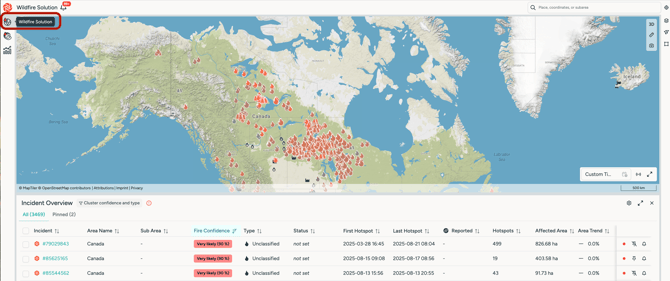
At the top left, select **"Wildfire Solution"** every time you want to access it.
---
### **2. Using the table for better Decision Making**
The *Incident Overview* is designed to allow users to seamlessly monitor and manage fire incidents in real time.
It displays up-to-date information on active fires, including their exact location, intensity, spread rate, and affected areas.
**Integrating your Data**
You are also able to import your own Incidents and Alerts from external sources (cameras, phone calls, etc) into WFS, so they can be managed from a single place. To read more about it, please check our [user data integration guidelines](https://help.ororatech.com/customization?hsLang=en).
Clusters are displayed according to their classification:
- Unclassified
- Classified as Fire
- External Integrated Incidents
To learn more about how you should use *Classifications* to assist your Fire Management, please refer to [this article](https://help.ororatech.com/notifications?hsLang=en).
**Incident Overview**
The Incident Overview groups all critical information, so that users can focus on what matters most without navigating other menus or the cluster details.
Integrated Incidents are **differentiated by their icons**, making it easy to distinguish between different sources.
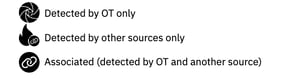
You can add or remove external information using the **Customization** functionality.
The **preset of the table** will always show incidents with the **latest activity at the top.** All data can be sorted and displayed according to the parameters our choice, by clicking in the columns.
The Incident Overview adapts to the selected Time Frame. You can also use it to assess Historical Fires. To learn more about it, please refer to [this article](https://help.ororatech.com/how-to-understand-fire-growth?hsLang=en).
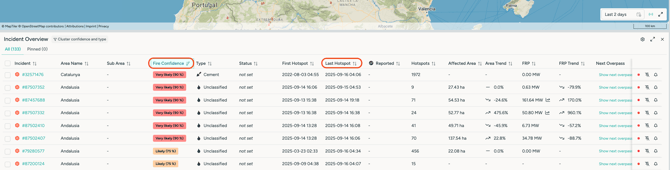
By combining Fire Confidence, and Last Hotspot,or Next Overpass you're able to quickly judge how many satellites detected the heat source, at what time, and how likely a specific cluster is to be a fire. In this way, in a short glance, you're able manage and respond to incidents.
---
### **3. Make sure the Incident Overview is active for your Areas**
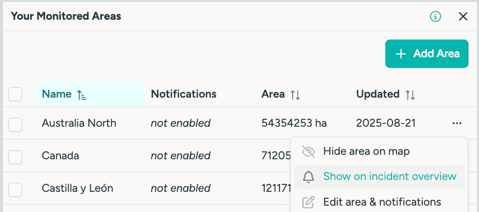
The Incident Overview will only display information of selected Monitored Areas. You can manage both your notification and Incident Overview settings from the *Monitor Menu.* To learn more about it, please refer to [this article](https://help.ororatech.com/how-tos-managing-my-notification-settings?hsLang=en).
### 4. Generate & Share Incident Reports
Quickly turn any fire or cluster into a ready-to-share PDF report!
From any fire or cluster view, you can now generate a customizable **Incident Report** with detailed information including:
- Time and location of the first detection
- Fire progression and intensity
- Affected area estimates
- Weather conditions and environmental indicators
You can choose what’s included in the report, making it ideal for **daily updates**, **executive summaries**, or **post-season reviews**.
**How to create a report:**
1. Click on any cluster in the Incident Overview table.
2. Find the downloading icon on the top-right corner of the cluster tab.
3. Select the **"Incident Report PDF"** button.
4. Customize the sections you’d like to include.
5. Download or share the PDF directly.
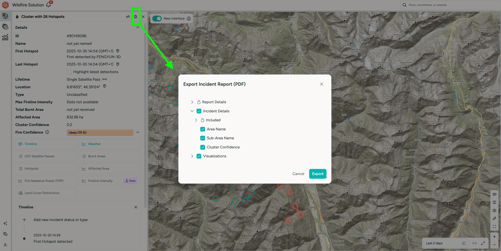
> 💡 Tip: This feature helps ensure reporting is fast, consistent, and professional —no copy-pasting needed.
The Reports feature is available in our new interface WFS 2.0. Learn more about it [here](https://help.ororatech.com/new-wfs?hsLang=en).
- [Start Here](https://help.ororatech.com/start-here?hsLang=en#main-content)
- [Explore WFS](https://help.ororatech.com/start-here?hsLang=en#explore-wfs)
- [Get Ready to Monitor](https://help.ororatech.com/start-here?hsLang=en#get-ready-to-monitor)
- [Learn the Basics](https://help.ororatech.com/learn-the-basics?hsLang=en#main-content)
- [Detections: Hotspots & Clusters](https://help.ororatech.com/learn-the-basics?hsLang=en#detections-hotspots-clusters)
- [Understand Fire Data](https://help.ororatech.com/learn-the-basics?hsLang=en#understand-fire-data)
- [Dive Deeper: Satellites & Fire Data](https://help.ororatech.com/learn-the-basics?hsLang=en#dive-deeper-satellites-fire-data)
- [Detect, Monitor & Analyze Fires](https://help.ororatech.com/detect-monitor-analyze-fires?hsLang=en#main-content)
- [Monitor & Assess Fire Activity](https://help.ororatech.com/detect-monitor-analyze-fires?hsLang=en#monitor-assess-fire-activity)
- [Fire Spread](https://help.ororatech.com/detect-monitor-analyze-fires?hsLang=en#fire-spread)
- [Burnt Areas & Data Analysis](https://help.ororatech.com/detect-monitor-analyze-fires?hsLang=en#burnt-areas-data-analysis)
- [Notifications](https://help.ororatech.com/detect-monitor-analyze-fires?hsLang=en#notifications)
- [Account & Settings](https://help.ororatech.com/detect-monitor-analyze-fires?hsLang=en#account-settings)
- [Additional Knowledge](https://help.ororatech.com/detect-monitor-analyze-fires?hsLang=en#additional-knowledge)
- [Integrations & Advanced Setup](https://help.ororatech.com/integrations-advanced-setup?hsLang=en)
- [Product Updates](https://help.ororatech.com/product-updates?hsLang=en)
- [Academy & Tutorials](https://help.ororatech.com/academy-tutorials?hsLang=en)
- [During an Active Fire](https://help.ororatech.com/during-an-active-fire?hsLang=en)
- [The Science Behind WFS](https://help.ororatech.com/the-science-behind-wfs?hsLang=en)
[](https://ororatech.com/)
[mailto:email@email.com](mailto:email@email.com)
Copyright © 2026, OroraTech