---
title: Monitor Fires Near Your Assets
description: Quickly identify when fires threaten your infrastructure and prioritize your response.
---
[Skip to content](https://help.ororatech.com/monitor-fires-near-assets#main-content)
English
Show submenu for translations
[](https://help.ororatech.com/?hsLang=en)
Open main navigation
Close main navigation
- English
Show submenu for translations
- Wildfire Solution App
Wildfire Solution App
How can we help you?
- There are no suggestions because the search field is empty.
1. [Help Center](https://help.ororatech.com/?hsLang=en)
2. [Detect, Monitor & Analyze Fires](https://help.ororatech.com/detect-monitor-analyze-fires?hsLang=en)
3. [Monitored Areas & Assets Advanced](https://help.ororatech.com/detect-monitor-analyze-fires?hsLang=en#monitored-areas-assets-advanced)
# Monitor Fires Near Your Assets
## Quickly identify when fires threaten your infrastructure and prioritize your response.
Once you’ve added assets, WFS helps you automatically detect when a fire is close to locations that matter to you, so you can act faster and more effectively.
### **🔍 Identify Assets Near Fire Clusters**
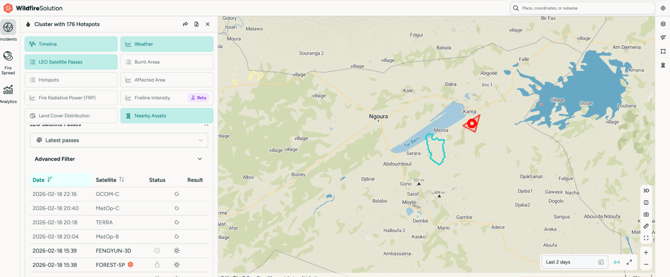
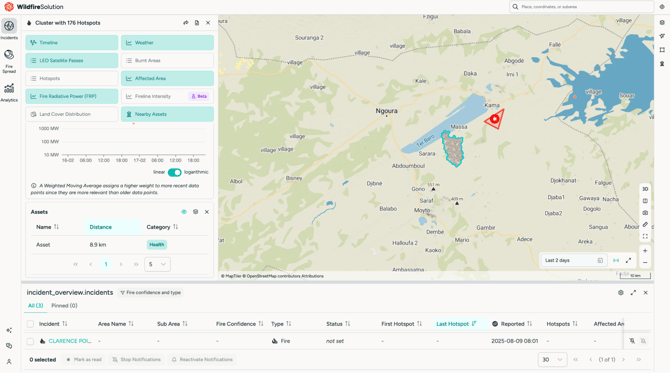
The **Nearby Asset Distance** feature helps you quickly understand whether a fire cluster may impact your infrastructure.
### **When does this feature appear?**
The Nearby Assets table is automatically displayed when:
- You have created **at least one asset**
AND
- A fire cluster is detected **within 10 km** of that asset
👉 When both conditions are met, the table appears inside the **cluster details panel**
### **What the Nearby Asset Table Shows**
The table displays:
- The **asset name**
- The **distance between the fire cluster and the asset**
- Updated distance measurements as the **fire perimeter grows**
👉 Clicking the table expands it to show all affected assets and their distances from the fire.
### **Continuous Monitoring**
The Nearby Assets table updates automatically throughout the **entire cluster lifecycle**.
This allows you to:
- Track whether a fire is moving **closer to** or **away from** your assets
- Monitor risk dynamically as conditions change
### ⏱️ Estimate When a Fire Could Reach Your Assets
From the **Nearby Assets** table, you can calculate an estimated arrival time for each monitored asset. WFS automatically runs a Fire Spread simulation in the background—**no manual simulation setup required**.
Distance shows you how far away a fire is. Arrival Time helps you understand how soon it could reach an asset.
##### **How to Calculate Arrival Time**
1. Open an **active fire cluster** on the map.
2. Go to the **Nearby Assets** tab in the cluster details.
3. Find the nearby assets table and click **Calculate**.
4. Review the **estimated arrival time** for each asset.
5. Click **View Results** to open the full Fire Spread simulation, including the weather model, spread forecast, fuel type breakdown, and map visualization.
6. Click **Recalculate** at any time to run the calculation again using the latest hotspot data.
> 💡 **How is Arrival Time calculated?**
> WFS automatically runs a **6-hour Fire Spread simulation with 12 steps at 30-minute intervals** in the background.
### **Why It Matters**
This feature helps teams:
- Quickly evaluate **risk to critical assets**
- Prioritize **suppression resources**
- Plan **initial attack or containment strategies**
By combining **Fire Spread simulations** with **asset monitoring**, you gain a clearer understanding of both **fire behavior and potential impact zones**.
### **🔥 Combine with Fire Spread for better decisions**
To go one step further:
- Use **Nearby Assets** to understand *what is at risk*
- Use **Fire Spread** to understand *where the fire may go next*
Together, they provide a clearer picture of both **current risk** and **future impact**
👉 **\[[Learn how to use Fire Spread to anticipate fire behavior](https://help.ororatech.com/how-to-run-simulation?hsLang=en)\]**
**🔁 Coming from setup?**
If you haven’t created assets yet: 👉 **\[[How to add and manage assets](https://help.ororatech.com/assets?hsLang=en)\]**
- [Start Here](https://help.ororatech.com/start-here?hsLang=en#main-content)
- [Explore WFS](https://help.ororatech.com/start-here?hsLang=en#explore-wfs)
- [Start Monitoring](https://help.ororatech.com/start-here?hsLang=en#start-monitoring)
- [Account & Profile](https://help.ororatech.com/start-here?hsLang=en#account-profile)
- [Learn the Basics](https://help.ororatech.com/learn-the-basics?hsLang=en#main-content)
- [Detections: Hotspots & Clusters](https://help.ororatech.com/learn-the-basics?hsLang=en#detections-hotspots-clusters)
- [Understand Fire Data](https://help.ororatech.com/learn-the-basics?hsLang=en#understand-fire-data)
- [Detect, Monitor & Analyze Fires](https://help.ororatech.com/detect-monitor-analyze-fires?hsLang=en#main-content)
- [Monitor & Assess Fire Activity](https://help.ororatech.com/detect-monitor-analyze-fires?hsLang=en#monitor-assess-fire-activity)
- [Fire Spread](https://help.ororatech.com/detect-monitor-analyze-fires?hsLang=en#fire-spread)
- [Monitored Areas & Assets Advanced](https://help.ororatech.com/detect-monitor-analyze-fires?hsLang=en#monitored-areas-assets-advanced)
- [Notifications](https://help.ororatech.com/detect-monitor-analyze-fires?hsLang=en#notifications)
- [Burnt Areas & Data Analysis](https://help.ororatech.com/detect-monitor-analyze-fires?hsLang=en#burnt-areas-data-analysis)
- [Additional Knowledge](https://help.ororatech.com/detect-monitor-analyze-fires?hsLang=en#additional-knowledge)
- [Integrations & Advanced Setup](https://help.ororatech.com/integrations-advanced-setup?hsLang=en)
- [Product Updates](https://help.ororatech.com/product-updates?hsLang=en)
- [Academy & Tutorials](https://help.ororatech.com/academy-tutorials?hsLang=en)
- [During an Active Fire](https://help.ororatech.com/during-an-active-fire?hsLang=en)
- [The Science Behind WFS](https://help.ororatech.com/the-science-behind-wfs?hsLang=en)
[](https://ororatech.com/)
[mailto:email@email.com](mailto:email@email.com)
Copyright © 2026, OroraTech