
By adding critical infrastructure—such as facilities, power lines, or protected zones—you can quickly assess whether a fire may threaten them.
Add User Assets
Before you can track assets near fires, you first need to create them in the platform.
Step 1: Open the Asset Manager
- Click the Assets icon in the platform.
- Select Add Asset.
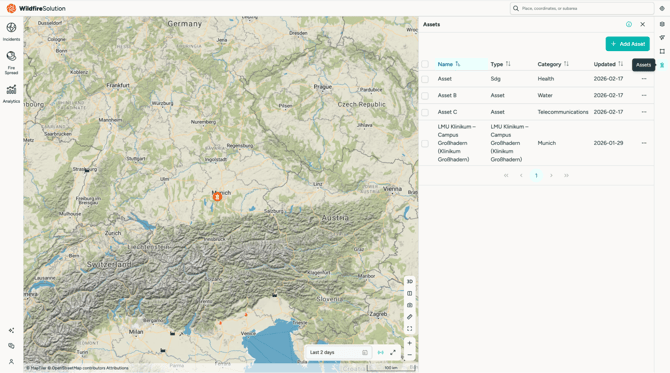
Step 2: Add Your Asset
You can create assets in several ways:
🖊️ Draw directly on the map
- Point – for locations such as buildings or towers
- Line – for infrastructure like power lines or roads
- Polygon – for larger areas such as facilities or protected zones
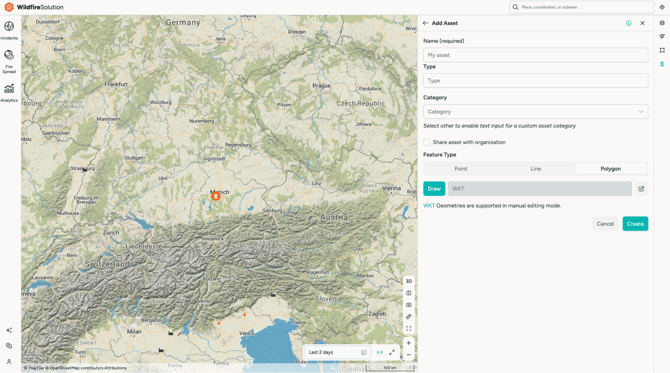
📂 Upload a file
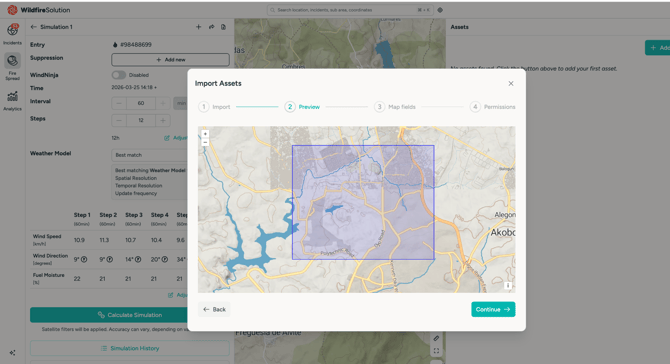
You can also upload existing geospatial data:
- Shapefile (.shp + .dbf + .prj)
- GeoJSON (.geojson)
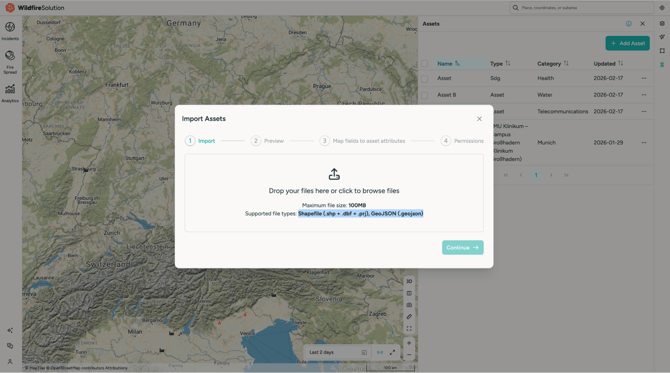
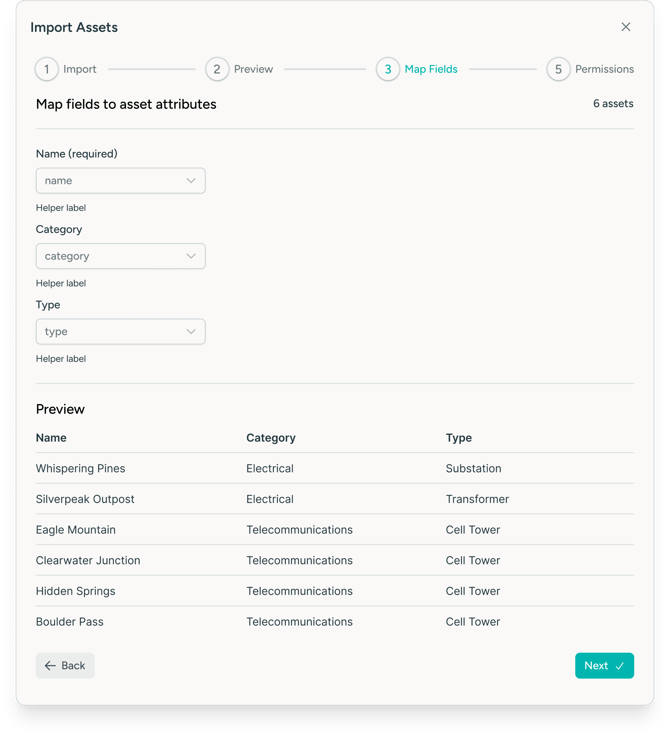
Step 3: Preview and Manage Assets
After uploading or drawing an asset you can:
- Preview the asset before confirming
- Toggle the User Asset layer on/off
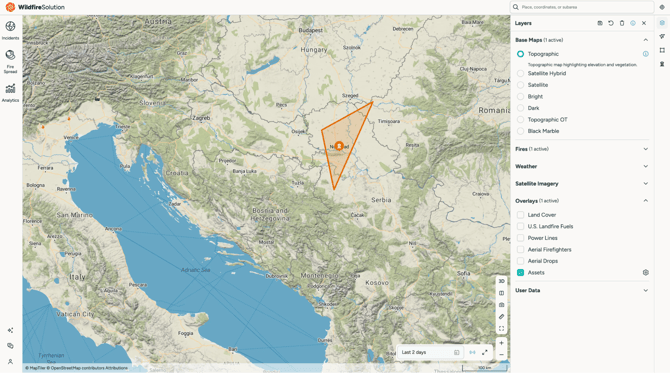
- Edit or delete assets anytime
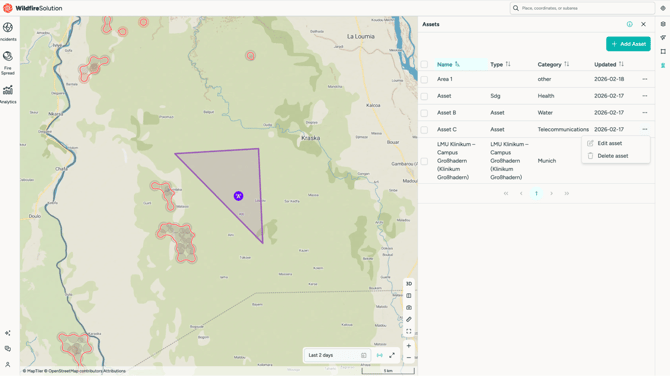
Once added, these assets will automatically be considered when nearby fire activity occurs.
✅ What happens next?
Once added, your assets are automatically considered when nearby fire activity occurs.
👉 This allows you to quickly identify when a fire is close to locations that matter to you.
Monitor fires near your assets
Now that your assets are set up, learn how to use them during active fires to assess risk and prioritize response.
⏱️ Estimate When a Fire Could Reach Your Assets
Distance shows you how far away a fire is. Estimated arrival time helps you understand when you may need to act.
From the Nearby Assets tab, you can calculate the estimated time for an active fire to reach your monitored assets. WFS runs a Fire Spread simulation in the background and provides an estimated arrival time for each asset.
How to use it:
- Open an active fire cluster.
- Go to Nearby Assets.
- Click Calculate.
- Review the estimated arrival times, or open the full simulation for more detail.
You can recalculate at any time to use the latest available fire detections.
💡 Use estimated arrival times alongside distance to help prioritize assets and support response planning.
🔐 How Asset Data Is Stored
User assets are securely stored within the platform and are only accessible to authorized users within your organization.
Uploaded files and asset geometries are processed and stored following OroraTech’s security and data protection standards.
If you have questions about data handling or security practices, please contact support@ororatech.com.